Inspection report3-page PDF
MOBILE INSPECTIONS + OWNER WORKSPACE
Your inspectors capture the facts. You see the fleet.
Inspectors record notes, photos and audio on board, then review reports drafted with their rules and writing style. Vessel owners get a shared view of assigned inspections, findings and published reports — without chasing files across the team.
Mobile fieldworkInspector-approved reportsOwner fleet view
Private access by request · iPhone & iPad for inspectors · owner workspace in private rollout
 ShipFindings
9:41●●●
Inspection Report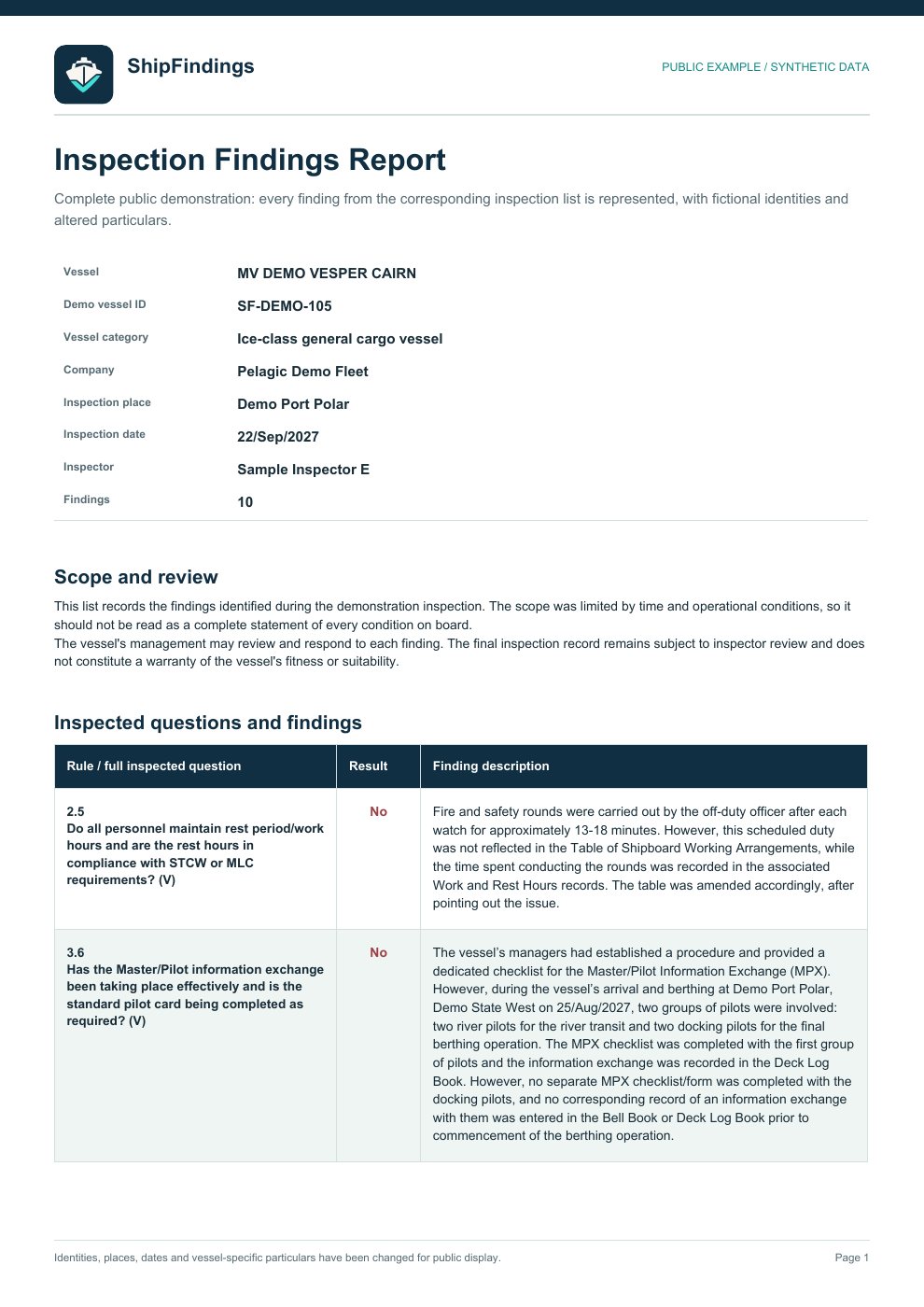
1 / 3Scroll all pages
9:41●●●
Company Findings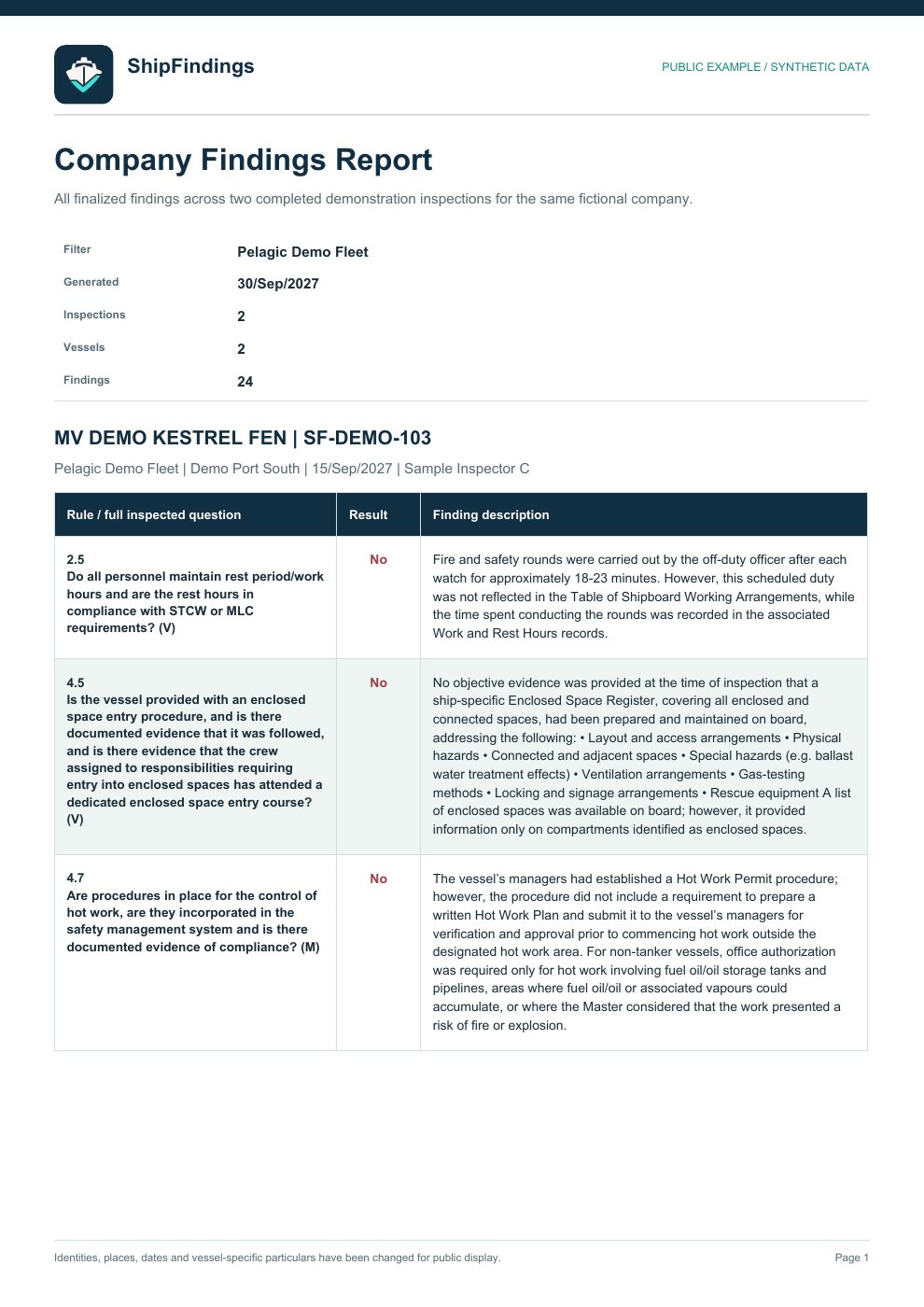
1 / 5Scroll all pages
9:41●●●
Vessel Findings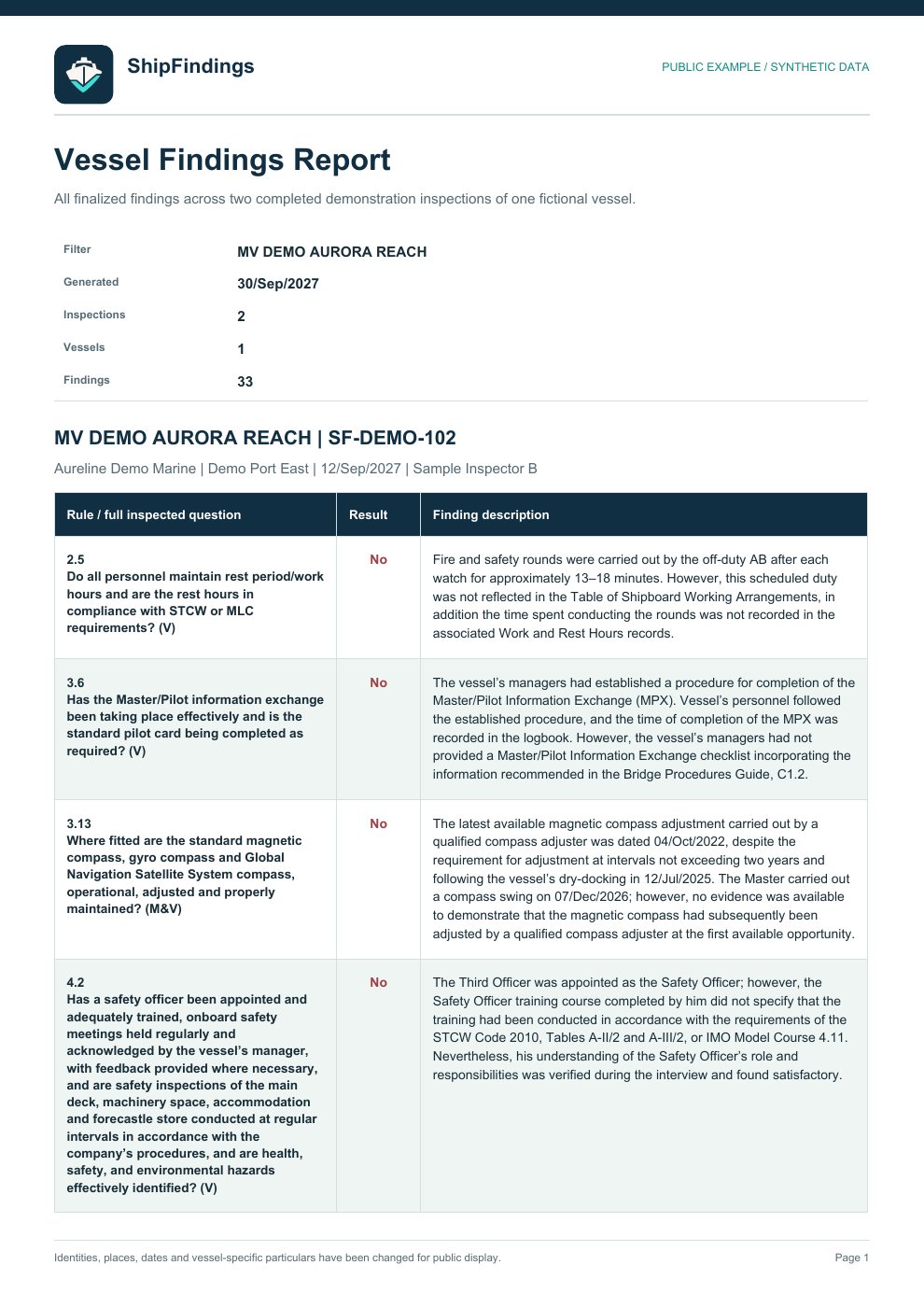
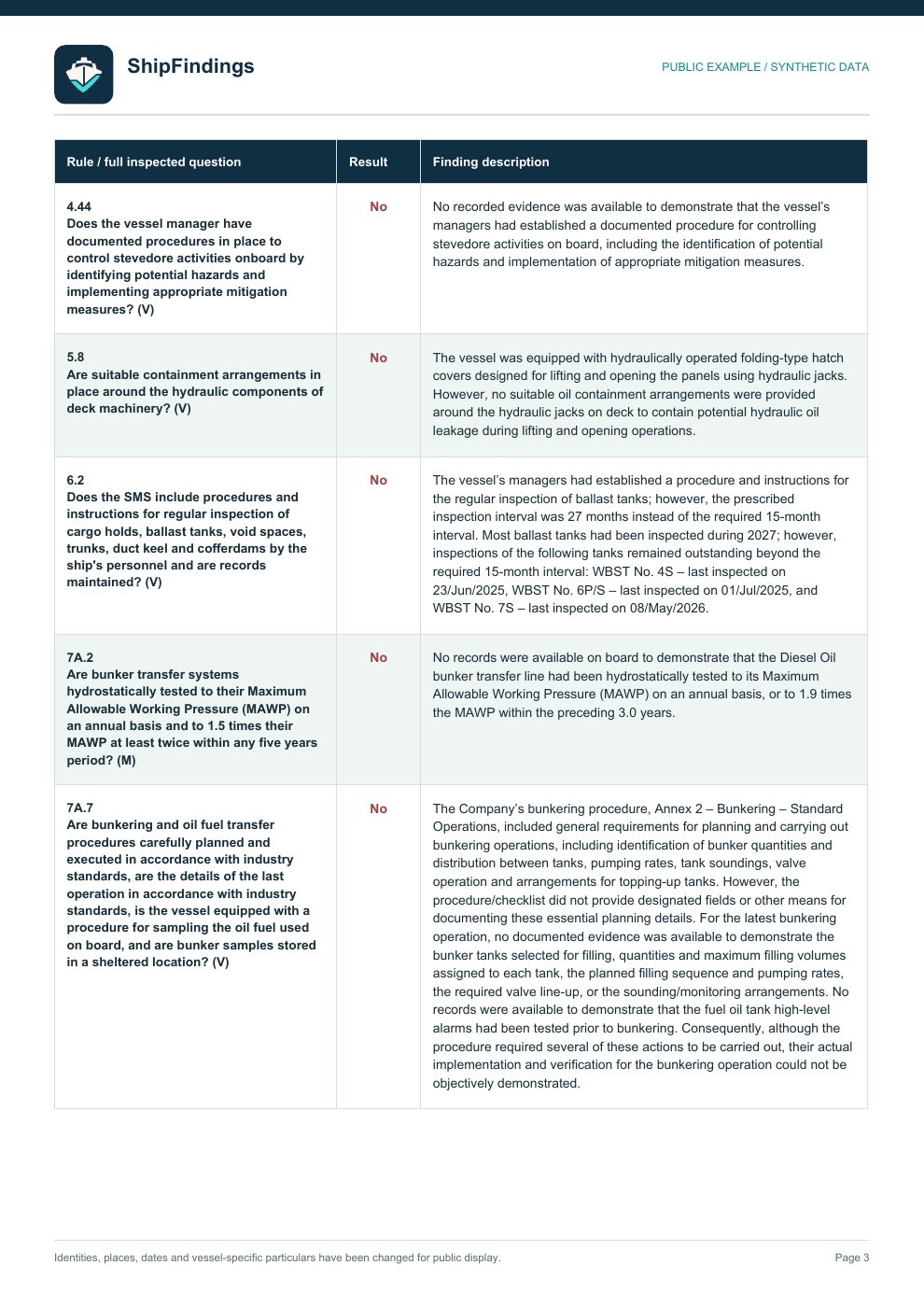
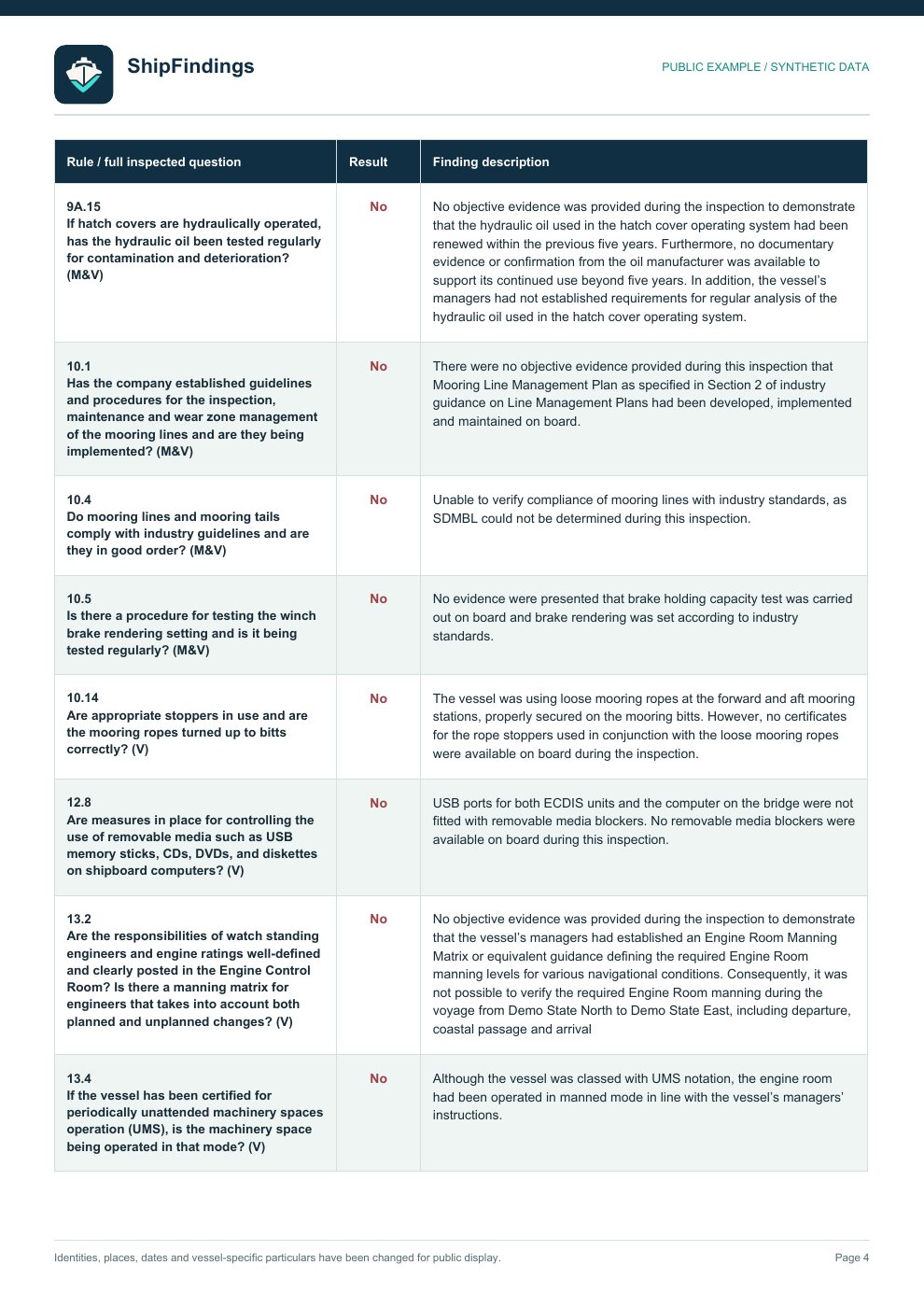
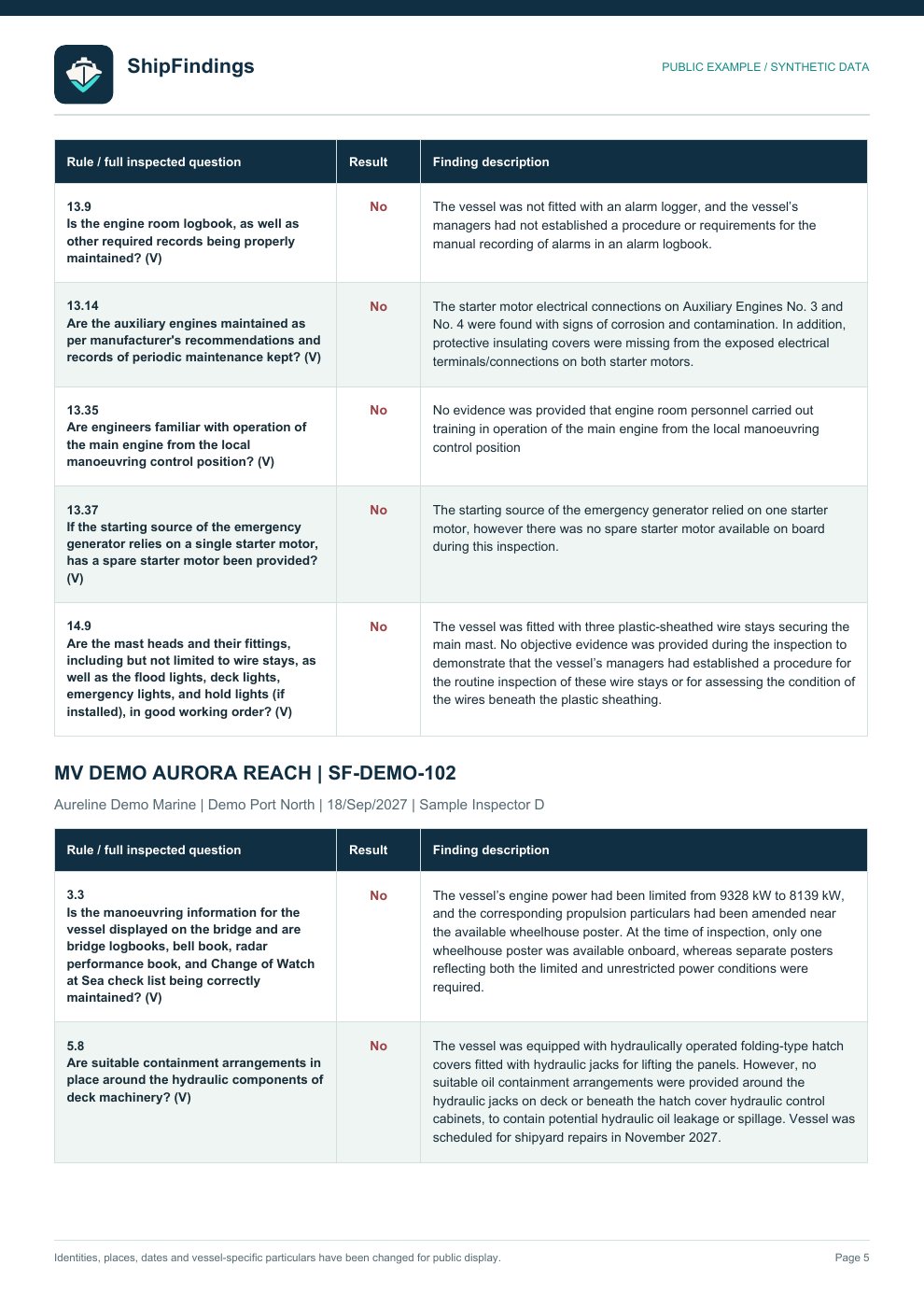
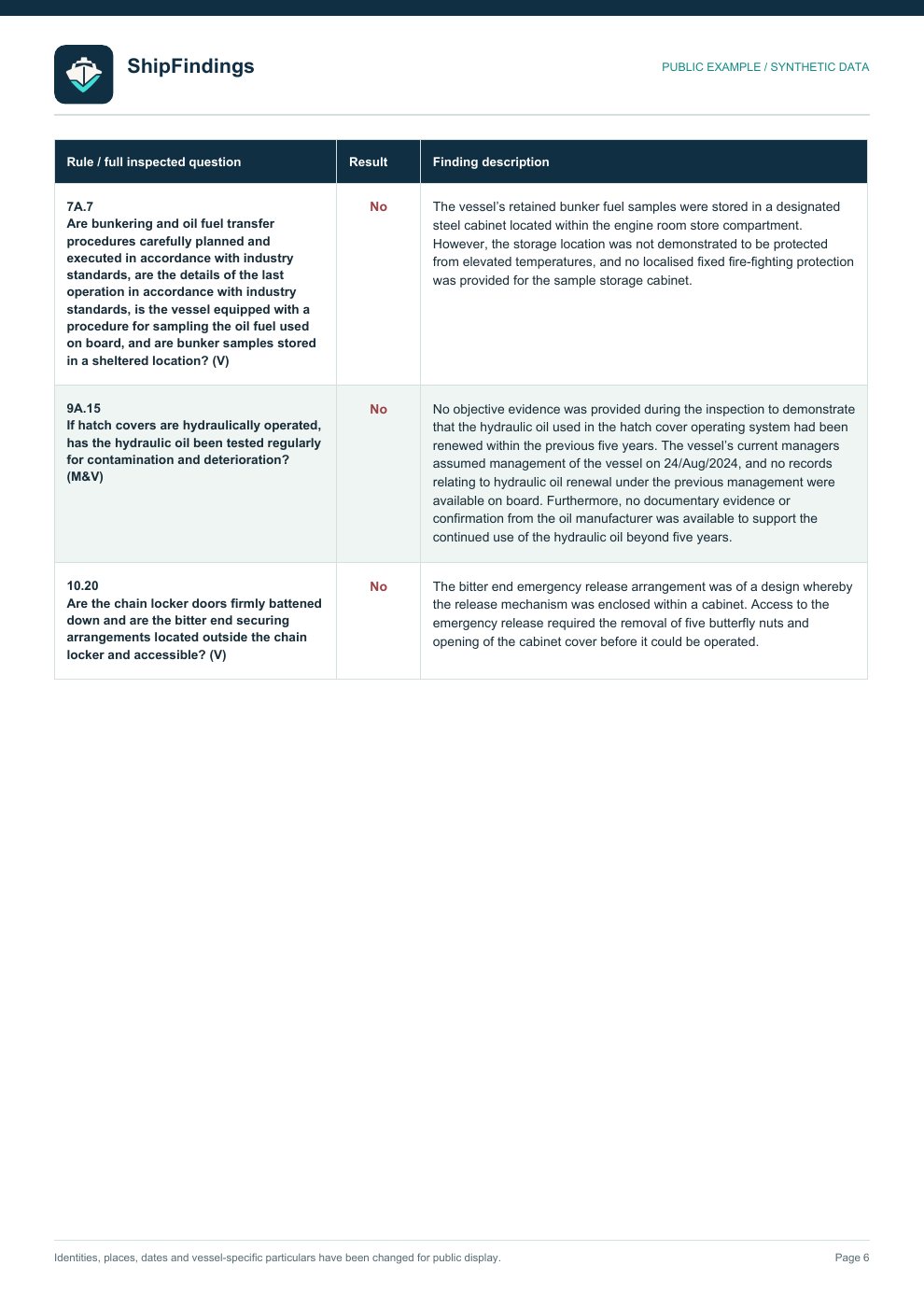
1 / 6Scroll all pages
Branded demo of the app interface · all preview data is fictional
Set the standardUse your rules and approved report examples
Capture on boardInspectors keep observations and evidence together
Review the reportInspectors approve what is published
See the fleetOwners access assigned work and final PDFs
MAKE IT YOURS
Give each inspector the references they work from.
Inspectors can add the rules they inspect against and previous reports whose wording they trust. ShipFindings uses these as references for new drafts. The facts still come only from the current inspection, and the inspector approves the result.
Your rulebooks
what appliesRISQ, regulations and company procedures
Your previous reports
how you writeApproved findings you choose to upload
This inspection
what happenedNotes, photos, recordings and readable photo text
ShipFindings draftRelevant rule.Verified fact.
Your reporting style.
You review the wording and approve the final report.
How “learning” works
Your uploads become the app's reference library for future reports. It does not turn old reports into facts about a new vessel or replace the inspector's judgement.
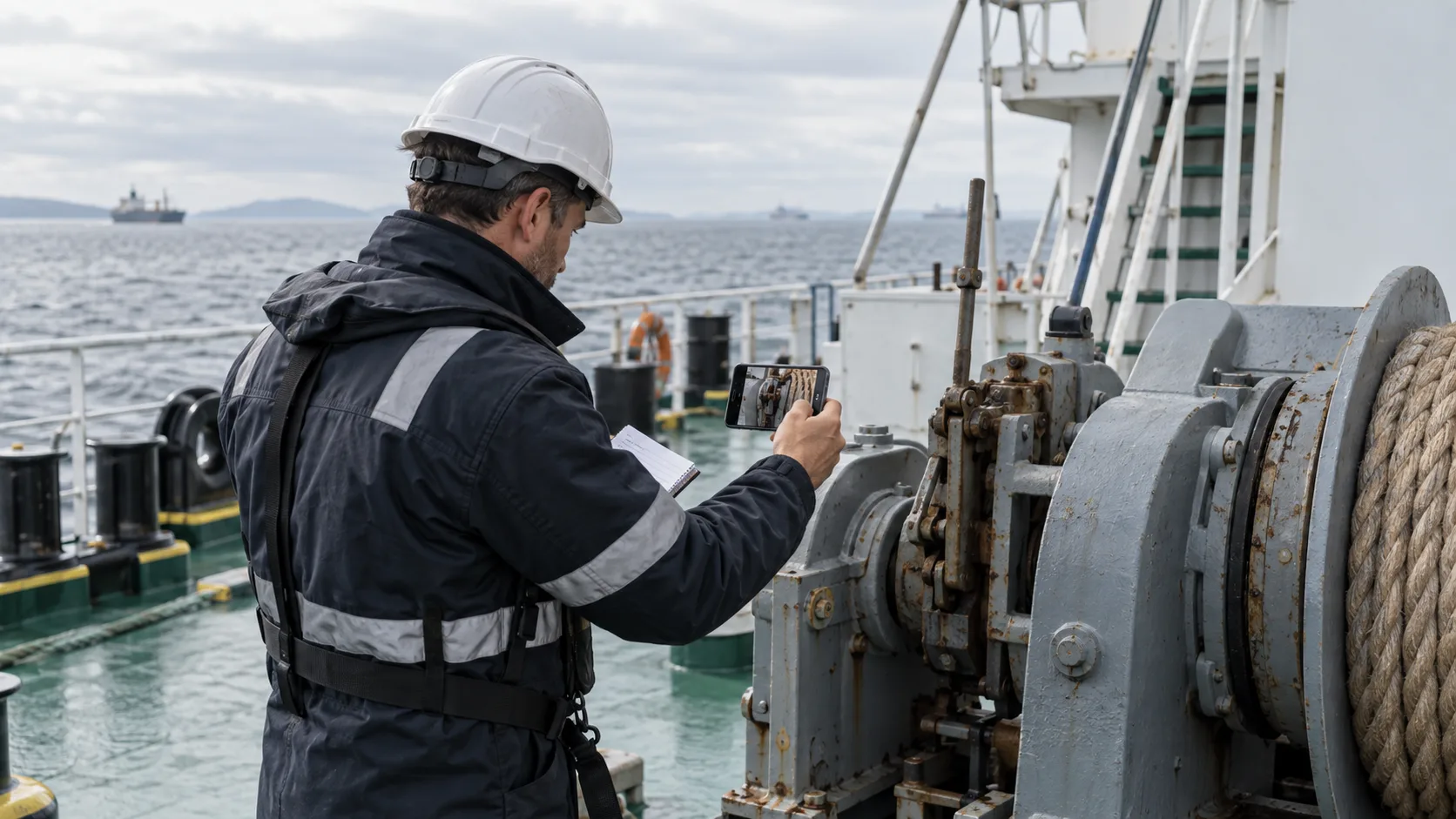 Illustrative photo
ON BOARD
Record it while the evidence is in front of you.
Use the mobile app to write a note, photograph the condition and record an audio comment — even without internet. Every piece stays with the inspection, so you do not have to reconstruct the observation later.
Example field noteStarboard aft mooring winch
Brake linkage photographed; visible corrosion noted in the inspector's audio comment.
Photo + note + audio remain togetherFOR VESSEL OWNERS
Give inspectors a better field tool. Get a clearer view of your fleet.
Invite inspectors into your company workspace. When an inspector assigns an inspection to your company, you can follow the shared record, review findings with their supporting photos and audio, and open the finished PDF after the inspector publishes it.
Two views, one connected workflow.The inspector keeps their personal iCloud sync and controls what they assign and publish. The owner sees company-shared inspections and reports through a separate account — not through the inspector’s Apple ID.
Inspector · mobile appRecord the inspection
Notes, findings, photos and audio stay attached to the vessel inspection.
Inspector · final reviewApprove and publish
The inspector checks the wording and separately publishes the reviewed PDF.
Owner · fleet workspaceSee what matters across vessels
Open shared inspections and evidence, scan recent findings, and access published reports in one place.
Company access is being introduced through private onboarding.
INSIDE THE OWNER WORKSPACE
See the fleet view for yourself.
Switch sections and open a sample inspection or PDF. This preview follows the real workspace structure; every vessel, person and number shown here is fictional.
Fleet workspacePelagic Demo FleetCompany overview
Your fleet
Inspection records and reviewed reports from assigned inspectors.
2Vessels covered
2Inspections
5Findings recorded
2Assigned inspectors
Recent findings
Open an inspection for the full recordMV Demo AuroraInspection · 22 Sep 2026
Starboard aft mooring winch
Surface corrosion recorded on the brake linkage during inspection.
MV Demo Vesper CairnInspection · 17 Sep 2026
Gyro compass service record
The documented service record was not available for review.
Fleet workspace
Recent findings
Findings marked by inspectors in company-shared inspections.
MV Demo Aurora22 Sep 2026
Starboard aft mooring winch
Surface corrosion recorded on the brake linkage.
MV Demo Vesper Cairn17 Sep 2026
Gyro compass service record
The service record was not available for review.
Fleet workspace
Inspections
Records shared by inspectors assigned to this company.
MV Demo AuroraCompleted · 6 notes · 2 findings
MV Demo Vesper CairnReport ready · 8 notes · 3 findings
Fleet workspace
Reports
Reviewed PDFs published to the company by inspectors.
Inspection reportOne vessel inspection
Company findingsAcross company inspections
Vessel findingsAcross one vessel’s inspections
Fleet workspace
Inspectors
The owner manages who can share inspections with the company.
Sample Inspector AAssigned inspector
Sample Inspector BAssigned inspector
In the real workspace, owners can invite or remove inspectors. This public preview does not change access.
Interactive product preview · synthetic data · private workspace access by request
 Illustrative photo
YOUR REPORTING VOICE
The facts are new. The writing feels familiar.
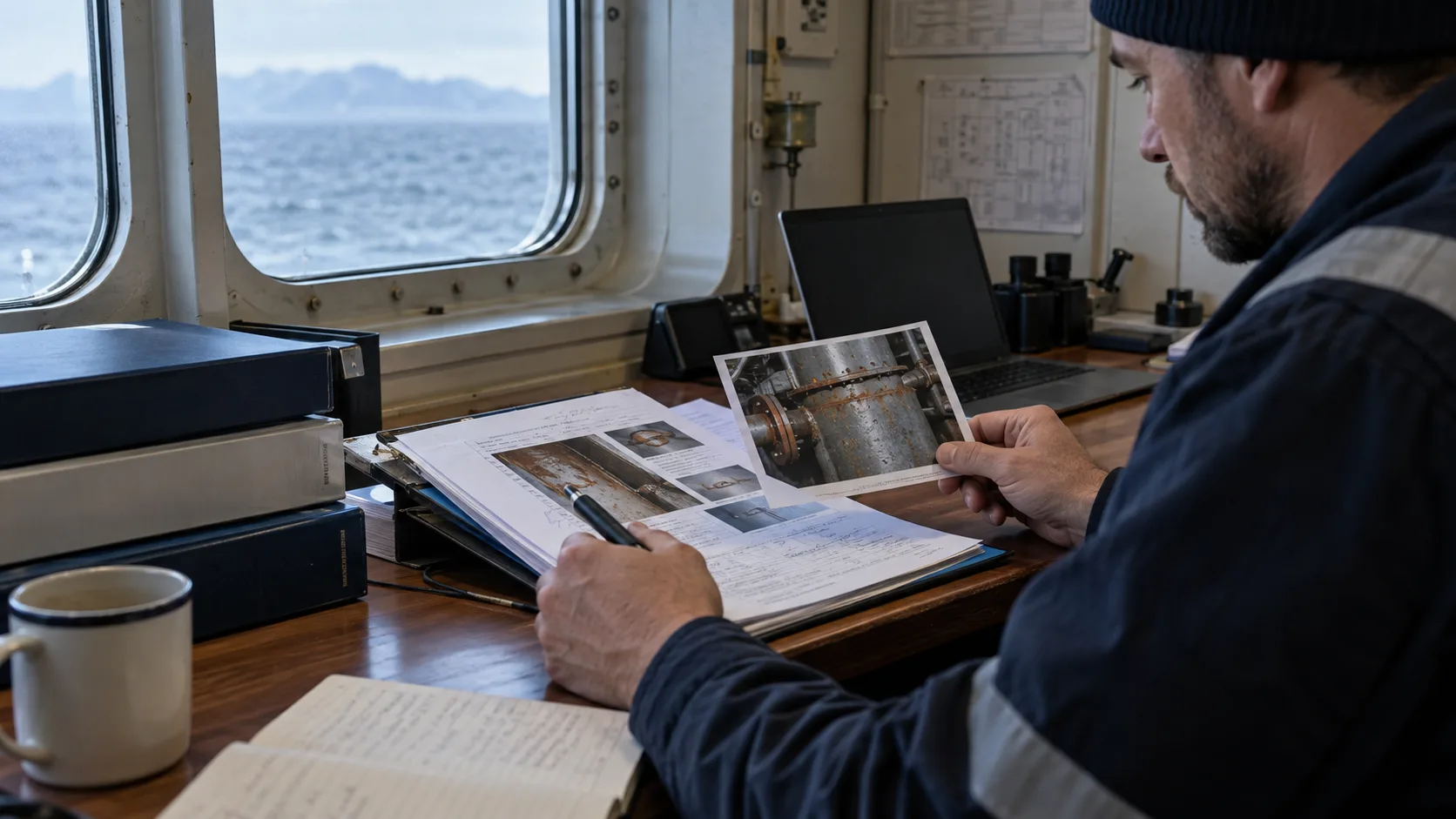
Upload completed reports you are happy to put your name on. ShipFindings uses their wording as examples for future drafts: concise, formal findings in your established style. It never treats a past finding as evidence for a new vessel.
Current inspection evidence
“The gyro compass service record was not available for review.”
Draft finding“At the time of inspection, the documented gyro compass service record was not available for review.”Illustrative example · you can edit before export
From the first note to a useful fleet record.
Inspectors get a focused mobile workflow. Owners get access to company-shared inspection evidence and reviewed reports.
01 On board
Capture the facts while they are in front of you.
Your observations stay together in the inspection, even when you are offline.
- Notes without internetKeep working when the vessel has no connection.
- Photos and audio togetherAttach each image and recording to its observation.
- Speak or write in your languageUse multilingual evidence; the report is drafted in English.
- Text from photosReadable text in attached images can inform the draft.
02 After inspection
A draft shaped by your rules and your writing.
Current inspection evidence supplies the facts. Your own documents shape how those facts become findings.
- Import your rule libraryUse regulations, standards and company procedures.
- Add approved past reportsUse their language as a style reference, never as new evidence.
- Find the relevant ruleMatch observations to applicable points before drafting.
- Follow the progressSee each preparation stage and know when the draft is ready.
03 Review and share
Inspector-approved reports. Owner-visible results.
The inspector keeps the final word. Assigned inspection records and published PDFs give the owner a dependable view of completed work.
- Review every findingEdit wording and check the linked rule before approval.
- Export a complete PDFInclude findings and their relevant photo evidence.
- Combine finished findingsCreate company- or vessel-level reports without rewriting them.
- Keep personal sync privateInspectors use their own iCloud across devices; company access is separate.
COMPARISON
Less reconstruction. Less chasing reports.
The difference is a connected record from the onboard observation to the owner’s view.
StageConventional workflowWith ShipFindings
On boardNotes, photos and audio scattered across toolsEvidence collected inside the inspection
Rule lookupManual search through multiple documentsImported rules used to help match observations
Report writingRebuild context and wording from memoryDraft from captured evidence and the inspector’s references
Final reviewFormatting and cross-checking in separate filesReview findings and publish a structured PDF
Owner accessAsk different people for updates and attachmentsSee company-shared evidence and published PDFs in the fleet workspace
PUBLIC REPORT EXAMPLES
One inspection workflow. Three useful reports.
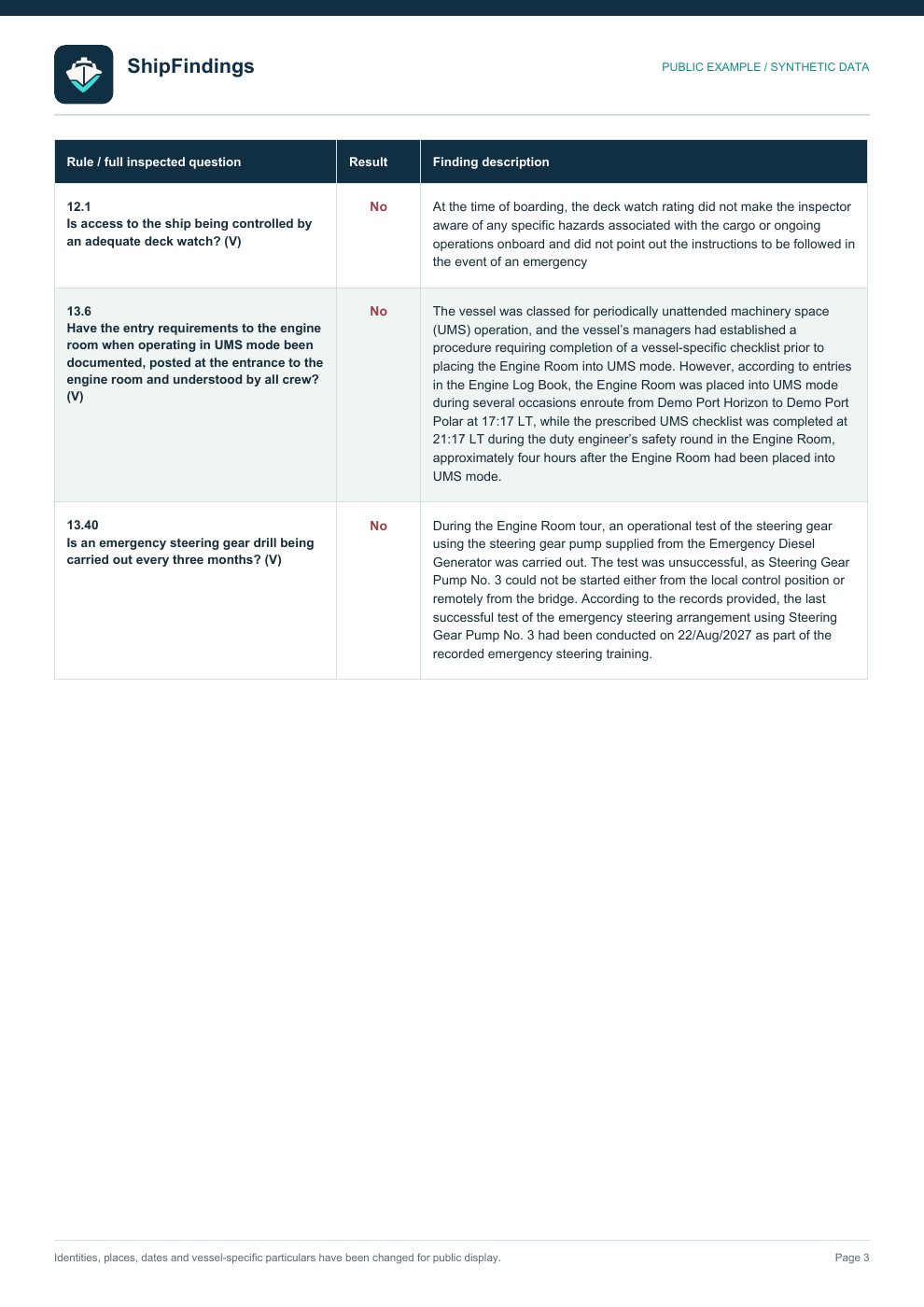
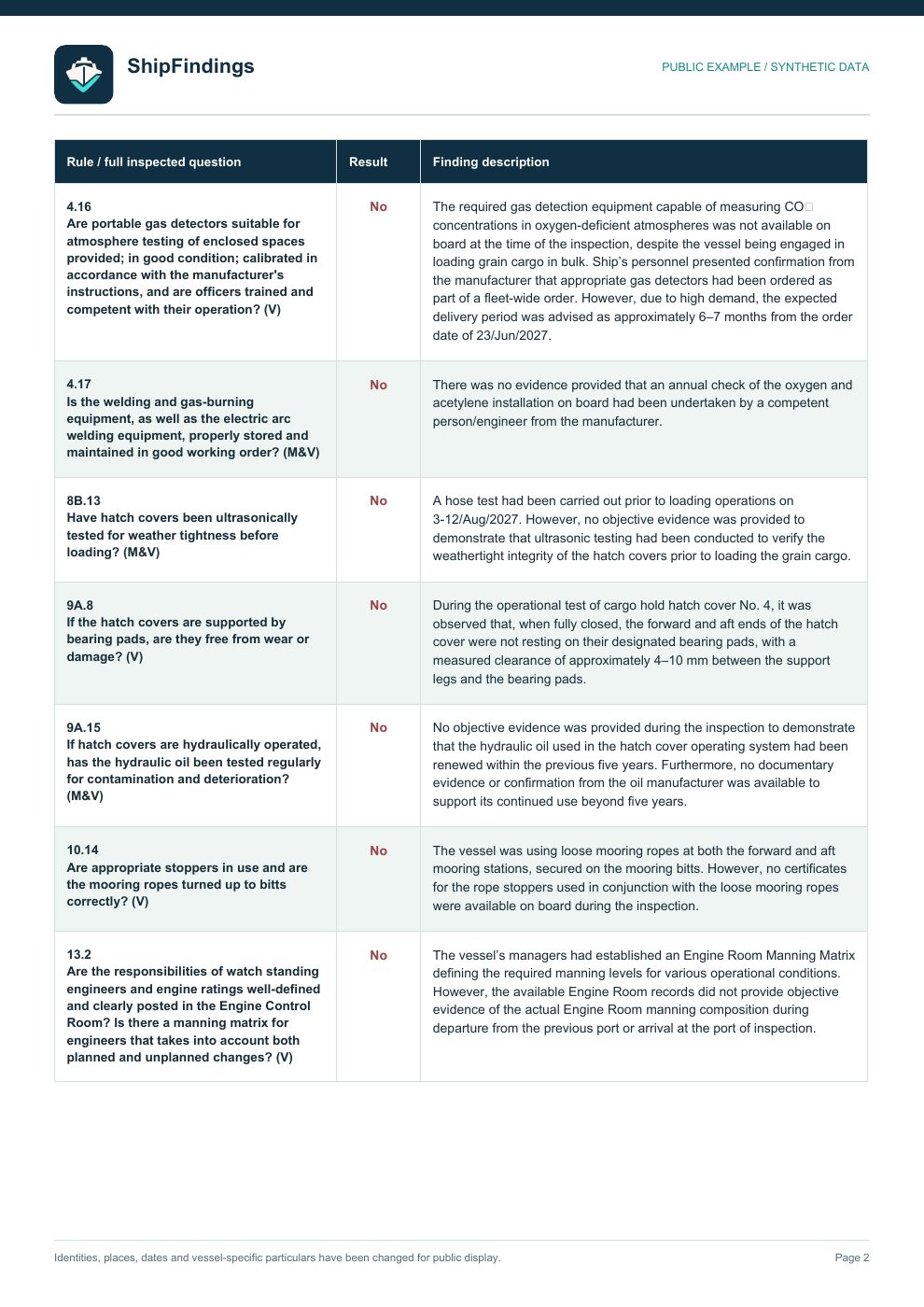
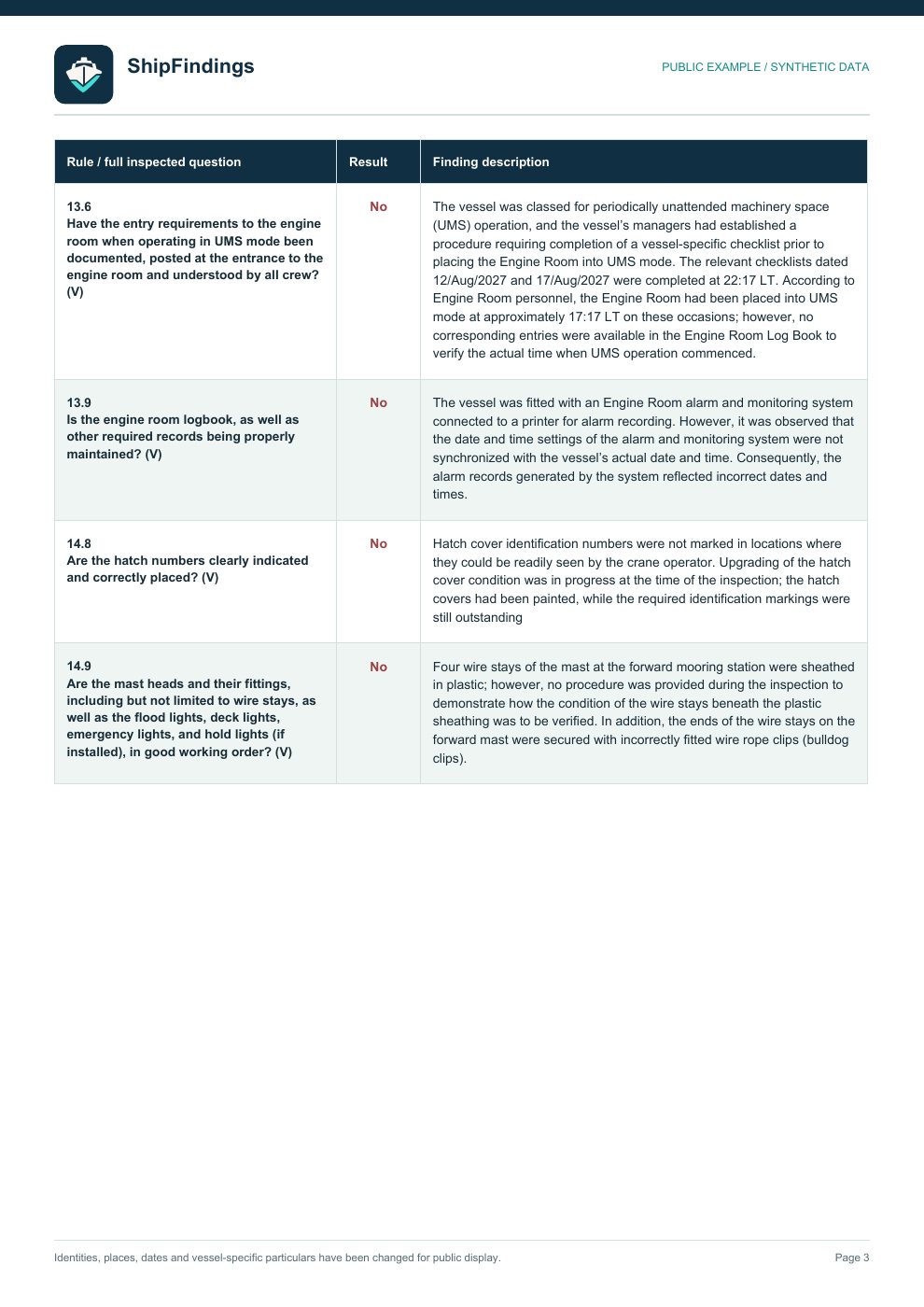
Inspectors complete and approve each inspection report in the mobile app. They can also compile approved findings across inspections by company or by vessel. Owners can access published PDFs for their company in the fleet workspace.
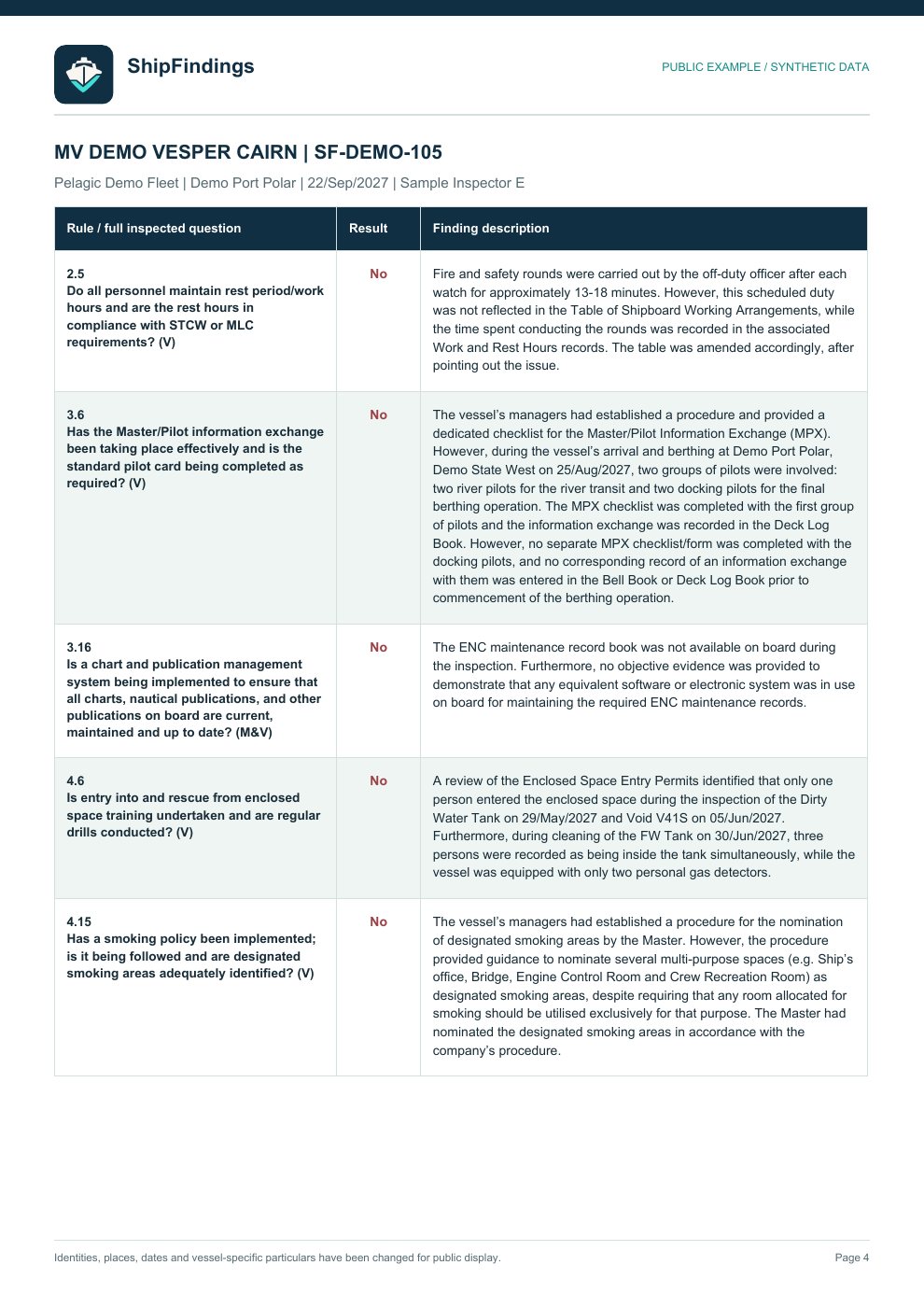
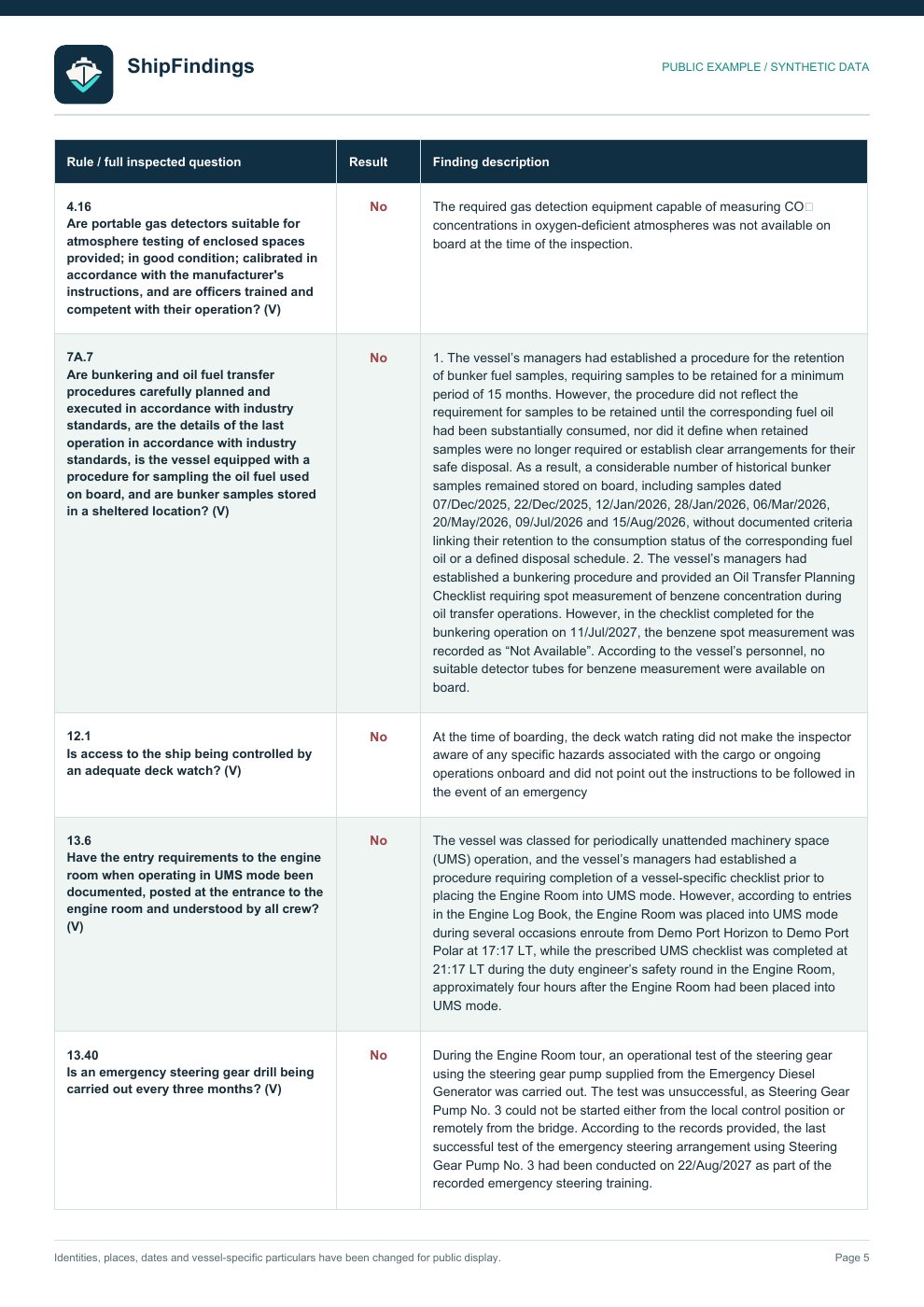
01 · Inspection reportThe full findings from one completed vessel inspection.
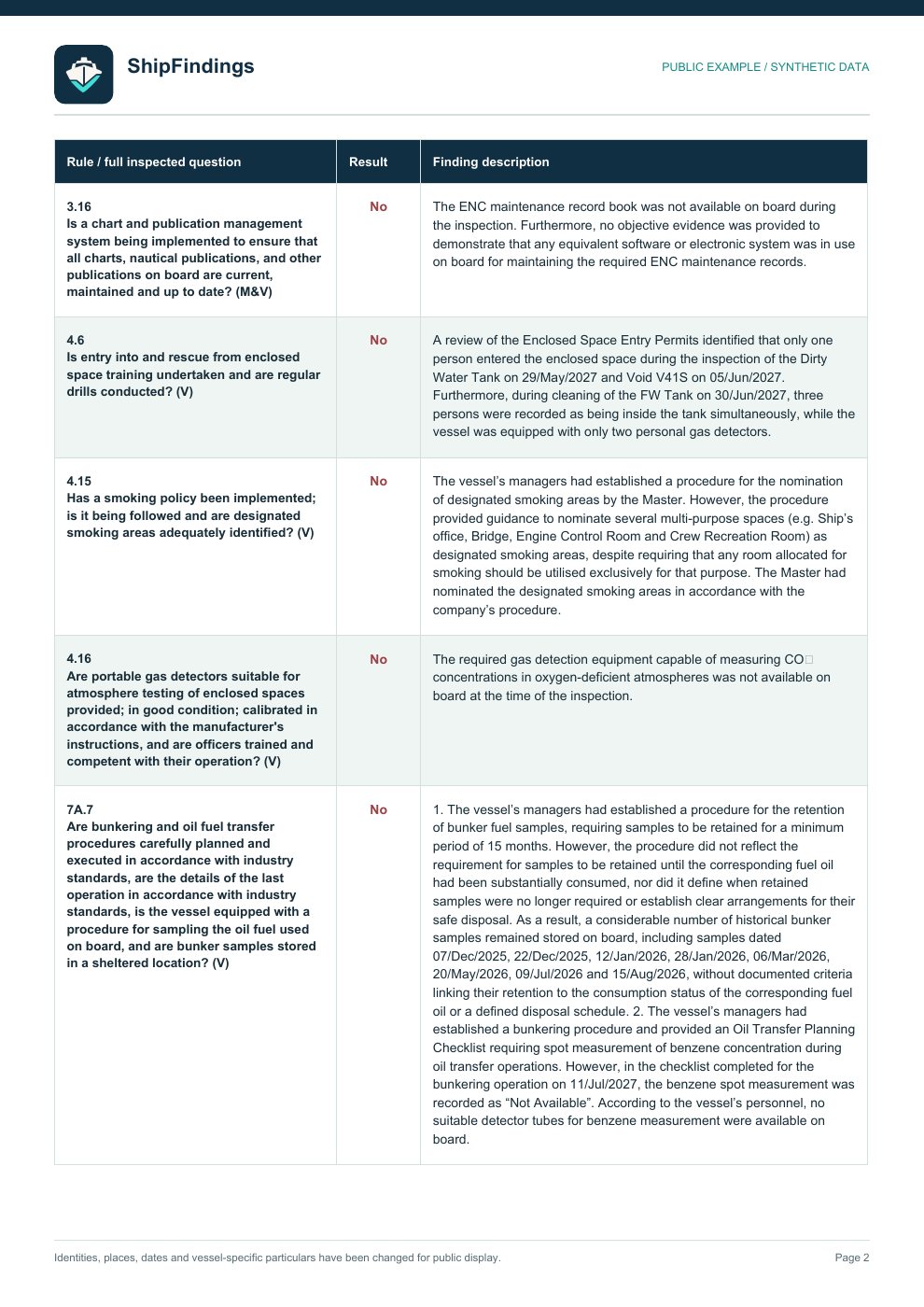
02 · Company findingsApproved findings from completed inspections of different vessels in one company.
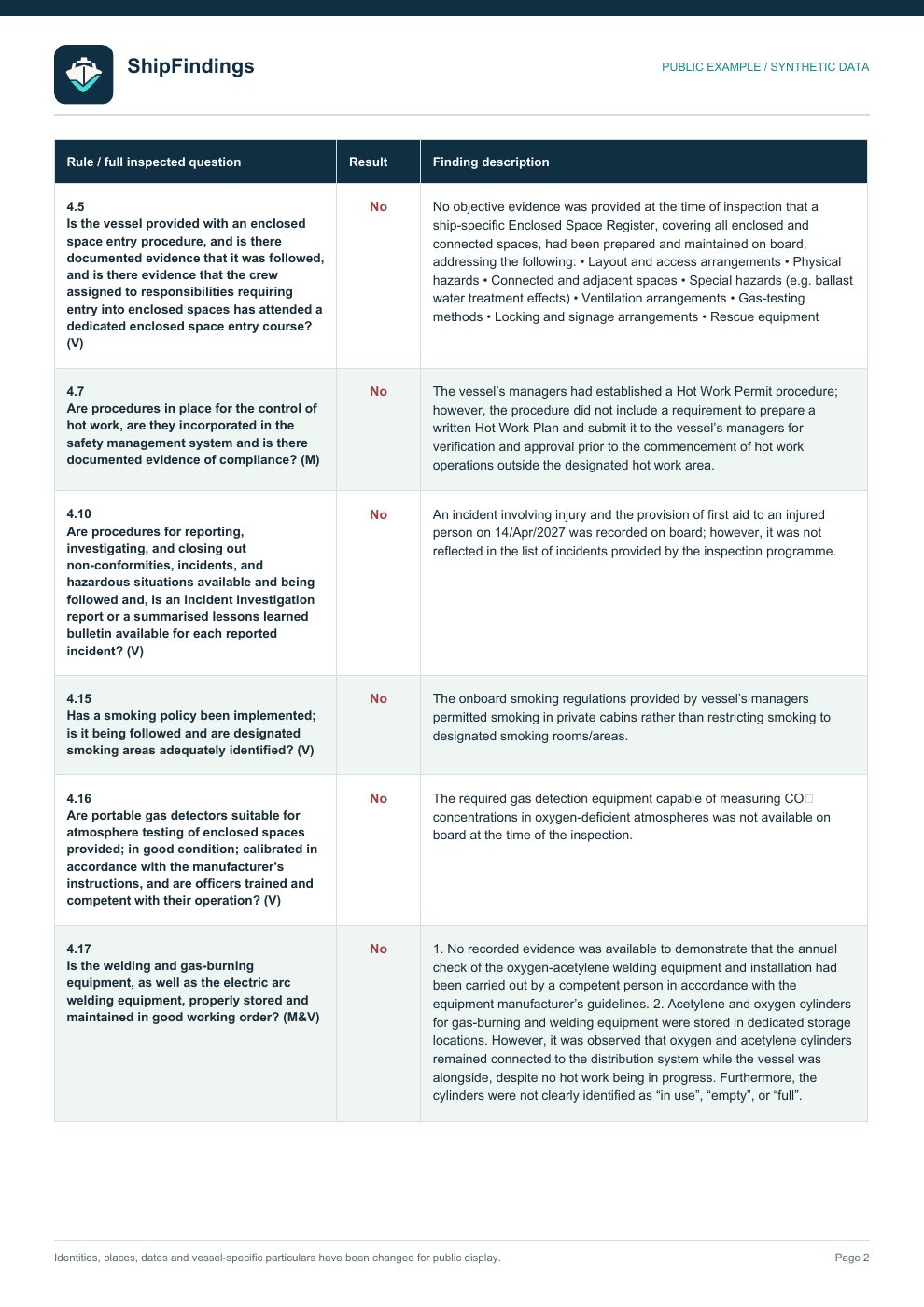
03 · Vessel findingsApproved findings across multiple inspections of the same vessel.
These complete report examples use fictional inspection details. No real vessel, company or inspector data is shown.
ShipFindingsPDF examples3 pagesPRACTICAL QUESTIONS
How do inspectors and owners work together?
Fieldwork stays with the inspector. Company-shared evidence and published reports become visible to the owner.
What does a vessel owner see?
In the fleet workspace, an owner can see inspections assigned to their company, recent findings, shared notes with photos or audio, and PDFs that inspectors have reviewed and published. The owner can also invite or remove inspectors.
Can an owner see an inspector’s private iCloud data?
No. Personal iCloud sync remains with the inspector’s own devices. Company access uses separate accounts and only the inspections the inspector assigns to that company.
How does ShipFindings learn my rules and style?
Import regulations and company procedures to build a rule library. Add previous approved reports as examples of wording. The app uses both when preparing new findings; it does not copy old observations into a new inspection.
Can inspectors work without internet on board?
Yes. They can capture notes, photos and audio locally. AI-assisted report preparation and sharing with the company need a connection.
What if notes or recordings are not in English?
The app can use multilingual notes and audio as evidence and drafts the final report in professional English.
Does the app publish a report without review?
No. The inspector previews the draft, edits wording, checks relevant rules and decides when to publish the final PDF.
What report types can the team produce?
An inspection report for one completed inspection, or a filtered findings PDF across completed inspections for one company or vessel. The filtered export preserves approved wording.
Where can I get team access and pricing?
Use Request access & pricing to tell us about your company and inspection team. Inspector access on iPhone and iPad and the owner workspace are being introduced privately; public store links are not available yet.
REPORTING TIME
Compare your reporting time.
Tell us how many reports you write and how long each one takes today. We compare that with a 30-minute ShipFindings target per report, including your review.
140
1 h16 h
With ShipFindings · reporting target30 min per report, including review
ESTIMATED DIFFERENCE
28hours / month potentially freedThe 30-minute figure is our reporting target, not a measured or guaranteed result. Actual time depends on the inspection and your review.
PRIVATE ACCESS BY REQUEST
Equip the inspector. Keep the owner informed.
Tell us about your vessels and inspection team. We’ll discuss private access to the inspector app and owner workspace, along with pricing and onboarding. Public download links are not available yet.
Inspector appiPhone & iPad · private access
Owner workspacePrivate onboarding